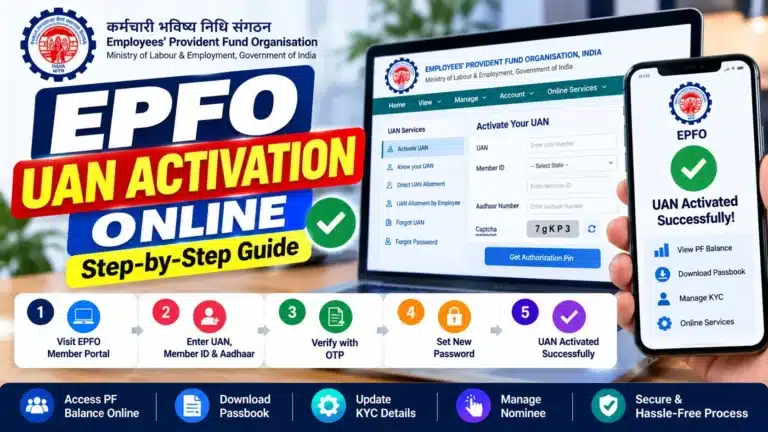
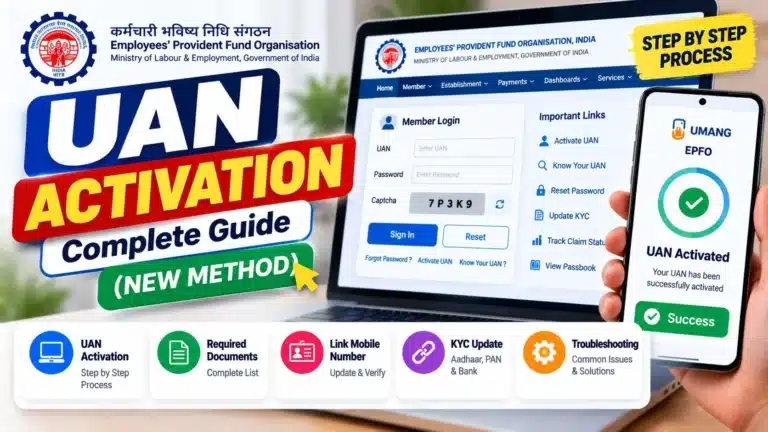
If you have been putting off UAN activation because the process sounded complicated, here is the good news: UAN face authentication has made it a 10-minute job on your phone. No EPF office visit, no employer approval, no paperwork. Since July 2026, the old portal-based activation route has been discontinued — UAN face authentication through the UMANG app is now the only way to activate your UAN. This guide explains how it works, walks you through every step, and fixes every face-scan failure you are likely to hit.
✅ This guide is based on official government sources and notifications. Last verified: October 12, 2026. Scheme details, eligibility criteria, and benefit amounts are revised by the government from time to time — always cross-check the latest information on the official portal before applying.
What Is UAN Face Authentication?
UAN face authentication is EPFO’s biometric activation and verification method that uses your face — instead of fingerprints or OTPs alone — to prove you are who your Aadhaar says you are. It was launched in August 2025, and EPFO has steadily pushed it to become the primary activation channel since.
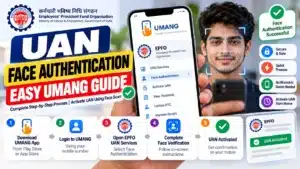
Here is the plain-English version of what happens: you open the UMANG app, choose a UAN service, and at the identity step your phone’s front camera scans your face. That scan is compared against the photograph stored in your Aadhaar record. If the two match, EPFO pulls your verified name, date of birth, photograph, and address straight from Aadhaar into its own records — and your UAN gets activated or updated.
Why did EPFO move to UAN face authentication? Two reasons. First, it kills the dependency on employers and EPF offices for activation — you do it yourself, from home. Second, it is far harder to fake than an OTP. An OTP can be shared or stolen; a live face, verified with a liveness check, cannot be easily spoofed.
One important clarification: UAN face authentication does not replace your UAN or your password. It is simply the identity-proofing step inside the activation and record-updation process. If you are starting from zero, read our complete UAN activation guide first for the full picture, then come back here for the face-auth specifics.
How Does UAN Face Authentication Actually Work?
Most articles tell you to “just scan your face” without explaining what is happening behind the screen. Let us fix that — understanding the tech takes the mystery out of the failures.
The app doing the heavy lifting. The scan is not done by UMANG itself. It is done by the Aadhaar Face RD app, built by UIDAI (the Aadhaar authority). UMANG hands off to it at the verification step, the way one app can open another. Both apps are free on the Play Store and App Store.
Step 1 — The liveness check. When the scan starts, your phone’s front camera looks for a live human face. This is called a liveness check, and it exists to stop photo-spoofing — someone holding up your photograph to the camera. The app will typically ask you to blink once when prompted. That single blink is the proof that a real, living person is in front of the camera.
Step 2 — The match. While you hold still, the app captures your facial features and sends the encrypted data to UIDAI’s servers, where it is compared against the photograph in your Aadhaar record. During the scan you will see a face outline on screen — it usually turns from red to green when the match succeeds. If it stays red, the match failed and you will need to retry (the fix guide below covers every reason this happens).
Step 3 — The data pull. On a successful match, EPFO fetches your verified details — name, date of birth, photograph, address — directly from the Aadhaar database and writes them into your EPF records. This is why UAN face authentication is so powerful for record correction: the data comes from a verified government source, not from something you typed.
A quick privacy note, because it matters. The face scan happens on your device and the verification runs through UIDAI’s secure API. EPFO does not store a video of your face — it receives the verified identity result and the demographic data. Your biometric data stays with UIDAI, the same as it always has.
So in one sentence: your live face matched against your Aadhaar photo, and a successful match lets EPFO trust and use your Aadhaar-verified details. Now let us look at the three services where this tech is actually used.
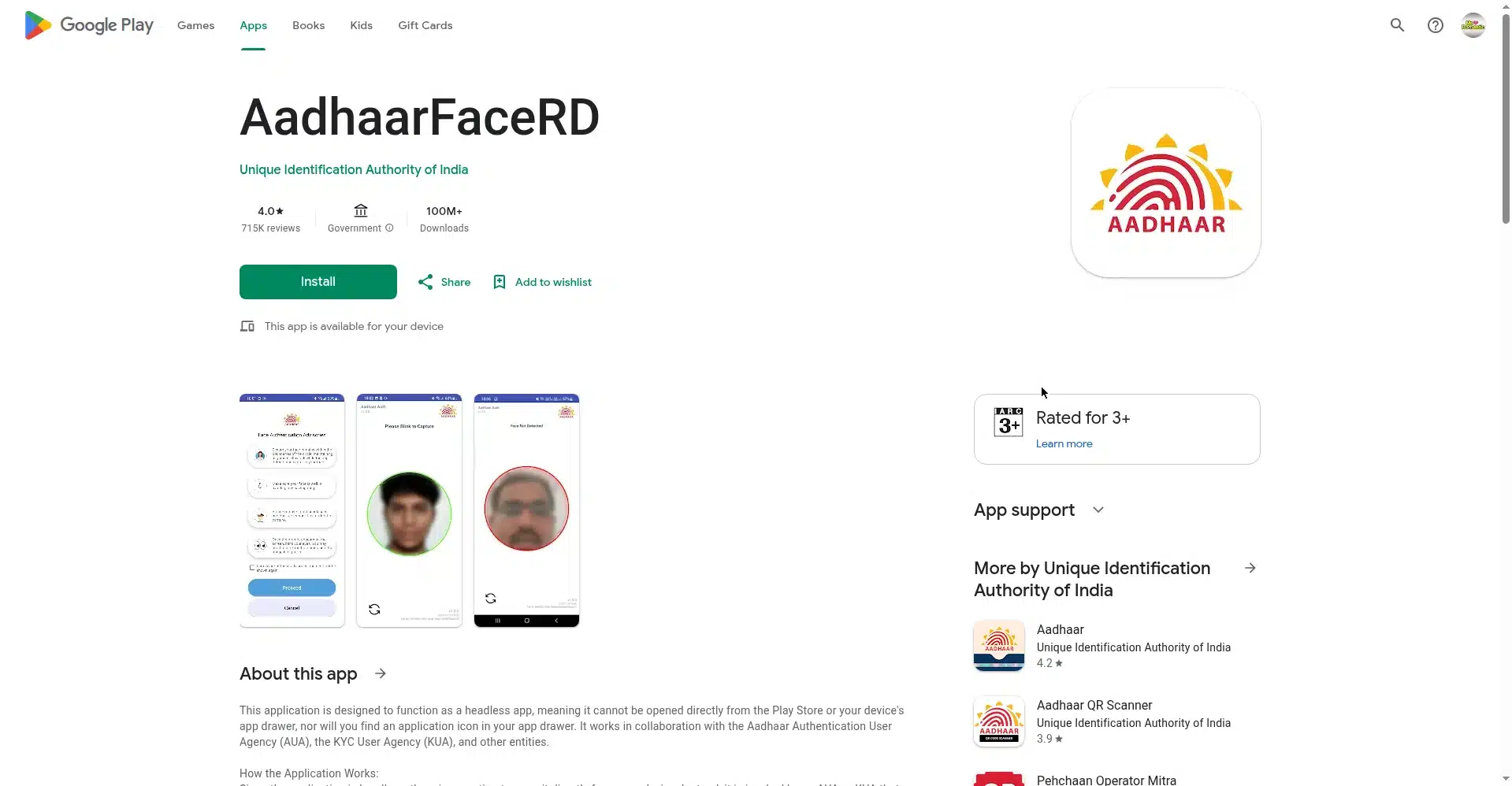
Aadhaar Face RD app by UIDAI — powers UAN face authentication
The 3 Face-Auth Services in UMANG
This is the part almost nobody explains properly. UMANG does not have one generic “UAN face authentication” button — it has three distinct services, and picking the wrong one wastes your time. Here they are, mapped clearly:
| Service | What It Does | When To Use It |
|---|---|---|
| UAN Allotment and Activation | Generates a brand-new UAN for you and activates it in one flow (Aadhaar + mobile number + OTP + UAN face authentication → UAN delivered via SMS) | You have never had a UAN — first job, first PF account |
| UAN Activation (under “UAN Services Through Face Auth”) | Activates an existing UAN that was allotted but never activated | Your employer gave you a UAN (check your salary slip) but you never activated it |
| Face Authentication of Already Activated UANs | Re-verifies your identity via UIDAI’s API and auto-updates EPFO records — no PF office visit needed | Your UAN is active but your name, DOB, or photo in EPF records is wrong or outdated |
The most-used flow is service #2 — activating an existing, never-activated UAN. That is what the step-by-step section below covers in detail. If you are not sure which situation you are in, check whether you already have a UAN (it is printed on your salary slip or ask your HR), then pick the matching service.
For the full activation context — including how to find your UAN and what to do after activation — see our EPFO UAN activation steps walkthrough, which covers the complete journey around this face-auth process.
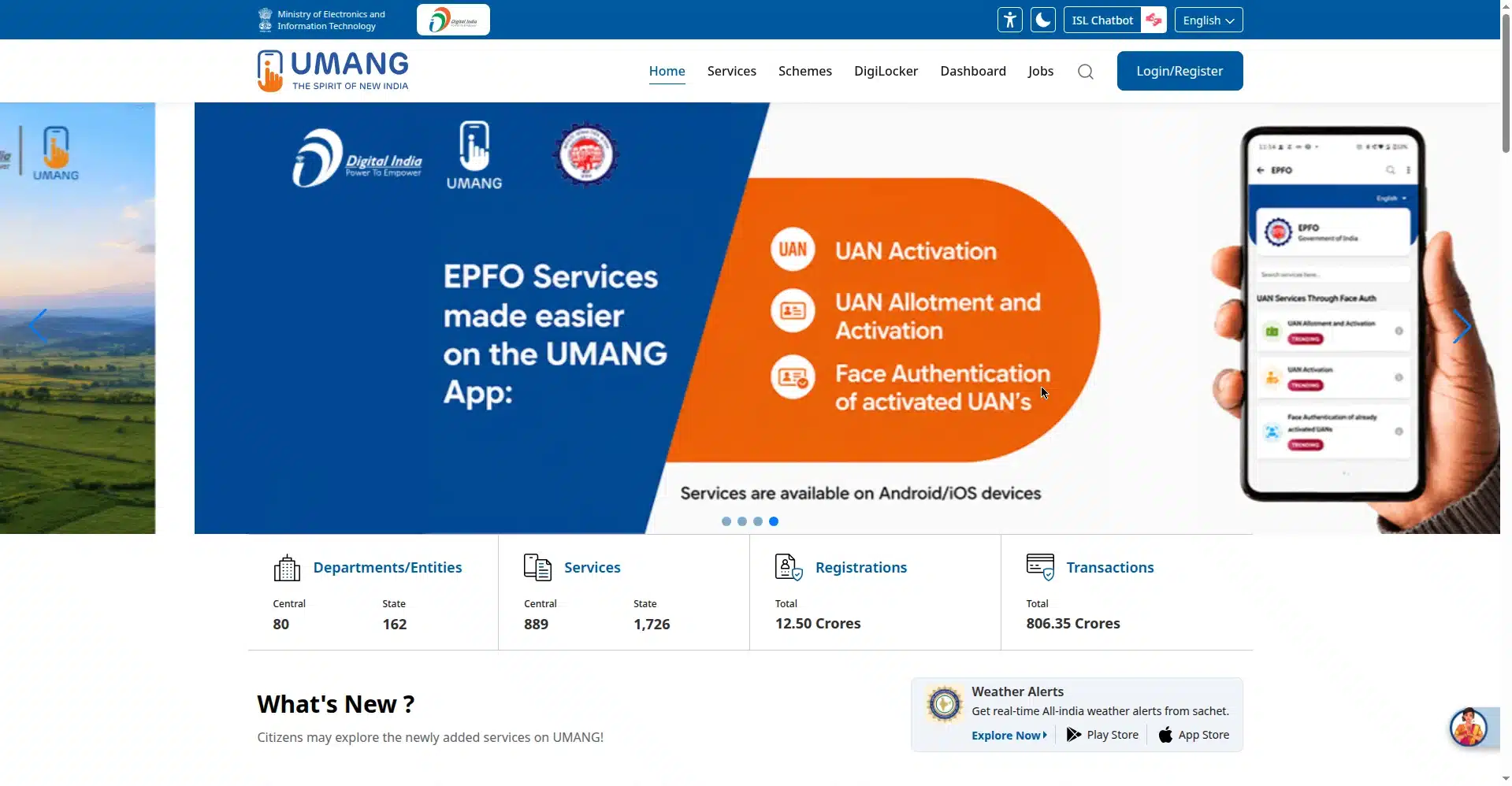
UMANG portal — find EPFO’s face-auth UAN services here
Step-by-Step — UAN Face Authentication for UAN Activation
This is the main flow: activating an existing but never-activated UAN using service #2. Keep your Aadhaar number, your UAN, and your Aadhaar-linked mobile phone next to you. The whole thing takes about 10 minutes if your face scan works on the first try.
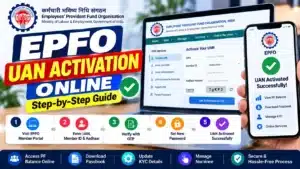
- Install the two apps. Download UMANG and the Aadhaar Face RD app (by UIDAI) from the Play Store or App Store. Both are free. Do this on a phone with a working front camera.
- Open UMANG and find EPFO. Launch UMANG, use the search or browse to the EPFO section.
- Choose “UAN Services Through Face Auth”. Inside EPFO services, look for this exact option — it is the face-auth gateway. Do not confuse it with the older non-face-auth entries.
- Select “UAN Activation”. This is service #2 — for existing, never-activated UANs.
- Enter your details. Type your UAN, your Aadhaar number, and your mobile number. Read the consent statement carefully — you are authorising EPFO to verify you against Aadhaar — then accept it.
- Verify with OTP. An OTP arrives on your Aadhaar-linked mobile number. Enter it. (If the OTP does not arrive, your mobile may not be linked to Aadhaar — see the guide to update mobile in Aadhaar.)
- Do the face scan. UMANG hands off to the Aadhaar Face RD app. Hold the phone at arm’s length, keep your face inside the on-screen outline, and blink once when prompted. The outline turns red to green on success.
- Review your details. After a successful scan, EPFO shows the verified name, DOB, photo, and address pulled from Aadhaar. Check them carefully — this is what goes into your EPF records.
- Submit and wait for the SMS. Confirm and submit. Your UAN password arrives via SMS on your registered mobile number. Activation is complete.
What if you do not have a UAN yet? Use service #1 (“UAN Allotment and Activation”) instead — the flow is nearly identical, except EPFO generates the UAN for you and sends it via SMS after the face scan. What if your UAN is already active but details are wrong? Use service #3 — the face verification lets EPFO auto-update your records without a PF office visit.
Face Scan Failing? Complete Fix Guide
The face scan is where most people get stuck. Do not panic — nearly every failure has a boring, fixable cause. Work through this rescue flow in order, from most common to least common. Stop at the step that fixes it.
- Fix your lighting first. This causes most failures. Sit facing a bright, diffuse light source — a window in daytime is ideal. Your face should be evenly lit with no harsh shadows. Crucially, do not sit with a bright light or window behind you (backlit faces fail almost every time). Indoor yellow tube-lights alone are often too dim — add a white light or move closer to the window.
- Clean your front camera lens. A smudged lens blurs the image just enough to fail the match. Wipe it with a soft cloth — shirt sleeve works in a pinch. This two-second fix resolves a surprising number of “scan not working” complaints.
- Update or reinstall the Aadhaar Face RD app. An outdated version can glitch on newer phones. Open the Play Store/App Store, check for updates, and if problems persist, uninstall and reinstall the app fresh. Then retry the scan from UMANG.
- Remove glasses and kill the glare. Spectacles cause reflections that confuse the matcher — take them off for the scan. Keep your full face inside the on-screen frame (forehead to chin, ear to ear), use a plain background, and tie back hair that covers your forehead.
- Blink once, exactly when prompted — then hold still. Do not blink repeatedly or look away. One deliberate blink when the app asks, then freeze like a passport photo until the outline turns green. Moving or talking during the capture is a common silent failure.
- Check whether your Aadhaar photo is ancient. If your Aadhaar photograph is 10+ years old (a childhood or much-younger photo), the matcher may genuinely not recognise you. This is the last-resort fix: visit an Aadhaar Seva Kendra or enrolment centre and get your photograph updated. Biometric/photo updates at Aadhaar centres carry a nominal fee — the current charges are listed in UIDAI’s official schedule (see uidai.gov.in).
- Know when to stop retrying. If you have worked through steps 1–6 carefully and the scan still fails after several genuine attempts, stop — repeated failed attempts will not suddenly start working. Call EPFO’s helpline 14470 or raise a grievance on the EPFiGMS portal describing the failure. Mention that UAN face authentication via UMANG is failing despite following all troubleshooting steps.
A practical tip: do your first attempt in the morning near a window, with a clean lens and no glasses. Most people who fail at night under tube-lights succeed on the first try in daylight.
Quick-reference: match your symptom to the fix.
| What You See | Likely Cause | Fix (Step Above) |
|---|---|---|
| Outline stays red, no error message | Poor or uneven lighting; backlit face | Step 1 — face the light source |
| “Face not detected” immediately | Dirty lens, or face partly out of frame | Steps 2 and 4 — clean lens, frame fully |
| App crashes or freezes on scan screen | Outdated or corrupt Face RD app | Step 3 — update or reinstall the app |
| Blink prompt never completes | Movement, glare from glasses | Steps 4 and 5 — remove glasses, hold still |
| Fails every time despite perfect setup | Aadhaar photo too old to match | Step 6 — update photo at Aadhaar centre |
UAN Face Authentication for PM Viksit Bharat Rozgar Yojana
Here is a reason to get your UAN face authentication done sooner rather than later: face authentication is mandatory for Pradhan Mantri Viksit Bharat Rozgar Yojana (PMVBRY) benefits. The scheme requires verified UAN records — meaning your name, date of birth, and other details in EPFO’s system must match your Aadhaar-verified identity.
If you are a first-time employee hoping to benefit from PMVBRY incentives, an unverified or never-activated UAN can hold up your eligibility. Completing UAN face authentication now — through any of the three UMANG services above — ensures your records are Aadhaar-verified and scheme-ready before you need them.
Think of it this way: the ten minutes you spend on the face scan today is the same verification the scheme will demand tomorrow. Do it once, and your UAN records will be Aadhaar-verified and ready for PMVBRY and any future Aadhaar-linked EPFO benefit.
Beware of UAN Activation Scams
⚠️ Warning: EPFO never asks for your OTP on a call, and UAN activation is completely free.
Fraudsters posing as “EPFO agents” contact people on WhatsApp and phone calls, offering to “activate your UAN quickly” — then ask for your OTP or demand a fee. Here is the truth:
- Activation is free. There is no government fee for UAN activation via UMANG. Anyone asking for money is a scammer.
- EPFO never calls asking for OTPs. The OTP you receive is only ever entered by you, inside the UMANG app. Never read it out to a caller, however official they sound.
- The only official route is UMANG. Since July 2026, UAN face authentication through the UMANG app is the only activation method. There is no “agent shortcut,” no WhatsApp service, no paid fast-track.
- Check the apps. Download UMANG and Aadhaar Face RD only from the official Play Store/App Store listings (developer: Government of India / UIDAI). Fake lookalike apps exist.
If someone has already taken your OTP or money, report it immediately: call the cybercrime helpline 1930 and file a complaint at cybercrime.gov.in, plus inform EPFO via 14470.
Frequently Asked Questions
1. Is UAN face authentication safe? What happens to my face data?
Yes, it is safe. The scan runs on your phone through UIDAI’s Aadhaar Face RD app, and verification happens via UIDAI’s secure systems — the same infrastructure that protects all Aadhaar biometric authentication. EPFO receives the identity-verification result and your demographic details (name, DOB, photo, address); it does not store a video of your face. Your biometric data remains with UIDAI under the Aadhaar Act’s protections.
2. Do I need both the UMANG app and the Aadhaar Face RD app?
Yes. UMANG is where the UAN services live, but the actual face scan is performed by UIDAI’s Aadhaar Face RD app — UMANG hands off to it at the verification step and returns afterwards. Install both before you start; both are free. If the handoff fails, reinstalling the Face RD app (fix step 3 above) usually resolves it.
3. My Aadhaar photo is very old. Will the scan still work?
Maybe not — this is a genuine limitation. If your Aadhaar photograph is 10 or more years old and you look very different now, the matcher can fail even with perfect lighting and technique. If you have exhausted the fix guide, visit an Aadhaar Seva Kendra to update your photograph, then retry the scan after the update reflects in UIDAI’s records (usually within a few days).
4. Can I complete UAN face authentication without a smartphone?
No — not the face-auth route. You need a smartphone with a working front camera, since the liveness check and scan happen through the camera. Since July 2026, portal-based activation has been discontinued and UAN face authentication via UMANG is the only activation route, so a smartphone is effectively required. If you do not own one, you could complete the process on a trusted family member’s phone (your Aadhaar and OTP, your face), then uninstall the apps afterwards.
5. How long does UAN face authentication take?
The process itself takes about 10 minutes: entering details, OTP verification, the face scan, and review. The face scan step takes under a minute when it works first try. Your UAN password arrives via SMS shortly after submission. If your scan keeps failing, budget extra time to work through the fix guide — most people succeed within 2–3 attempts once lighting and technique are right.
6. Is UAN face authentication now mandatory for UAN activation?
Effectively, yes. EPFO launched face-auth-based UAN services in August 2025, and since July 2026 the old portal activation route has been discontinued — UAN face authentication through UMANG is now the only way to activate a UAN. It is also mandatory for PM Viksit Bharat Rozgar Yojana benefits, which require Aadhaar-verified UAN records.
Conclusion
UAN face authentication turned one of EPFO’s most annoying processes into a ten-minute phone task. The technology is straightforward — your live face matched against your Aadhaar photo — and the three UMANG services cover every situation: new UANs, never-activated UANs, and record corrections for active ones.
If your scan fails, do not give up after one try. Work through the fix guide in order — lighting, lens, app version, glasses, the single blink — and most failures resolve in minutes. And remember: activation is free, EPFO never asks for OTPs on calls, and the UMANG app is the only official route.
New to the whole UAN process? Start with our complete UAN activation guide, then follow the EPFO UAN activation steps for the full journey. For official references, see UIDAI and EPFO. Got your UAN activated? Share this guide with a colleague who is still putting it off — they will thank you.