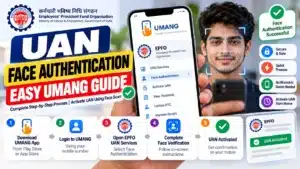
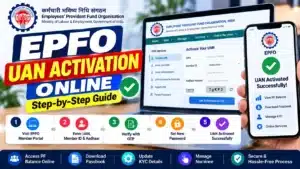
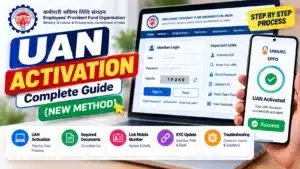
Got your first salary slip and spotted a 12-digit UAN on it? Then EPFO UAN activation online is the first thing you should finish — because until your UAN is activated, your PF account is locked away from you. You cannot check your balance, download your passbook, or file a claim. And here is the catch most old guides will not tell you: the method changed in 2026. EPFO has shut down online activation on its member portal, and the only working route now is the UMANG app with Aadhaar face authentication.
✅ This guide is based on official government sources and notifications. Last verified: October 12, 2026. Scheme details, eligibility criteria, and benefit amounts are revised by the government from time to time — always cross-check the latest information on the official portal before applying.
Do not worry — the new process is actually straightforward once you know the exact steps. In this guide, I will walk you through EPFO UAN activation online from start to finish: the documents you need, the complete UMANG step-by-step, what to do if your employer has not given you a UAN yet, and fixes for every common error. Let us get your UAN switched on.
⚠️ 2026 Change: Portal Method Discontinued
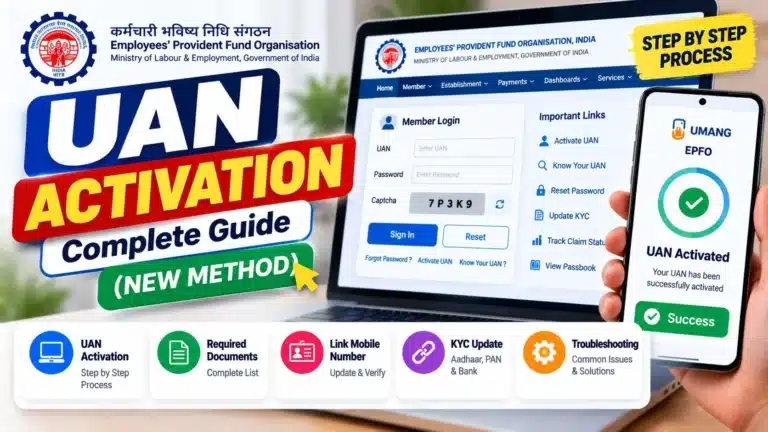
EPFO discontinued UAN activation on the member portal from July 3, 2026. If you open the old unified portal today looking for an “Activate UAN” button, you will not find one — only a notice pointing you to the UMANG app.
Many old articles still ranking on Google show the dead portal OTP method. Ignore them. In 2026, EPFO UAN activation online happens only through the UMANG app with face authentication. Everything below follows the current method.
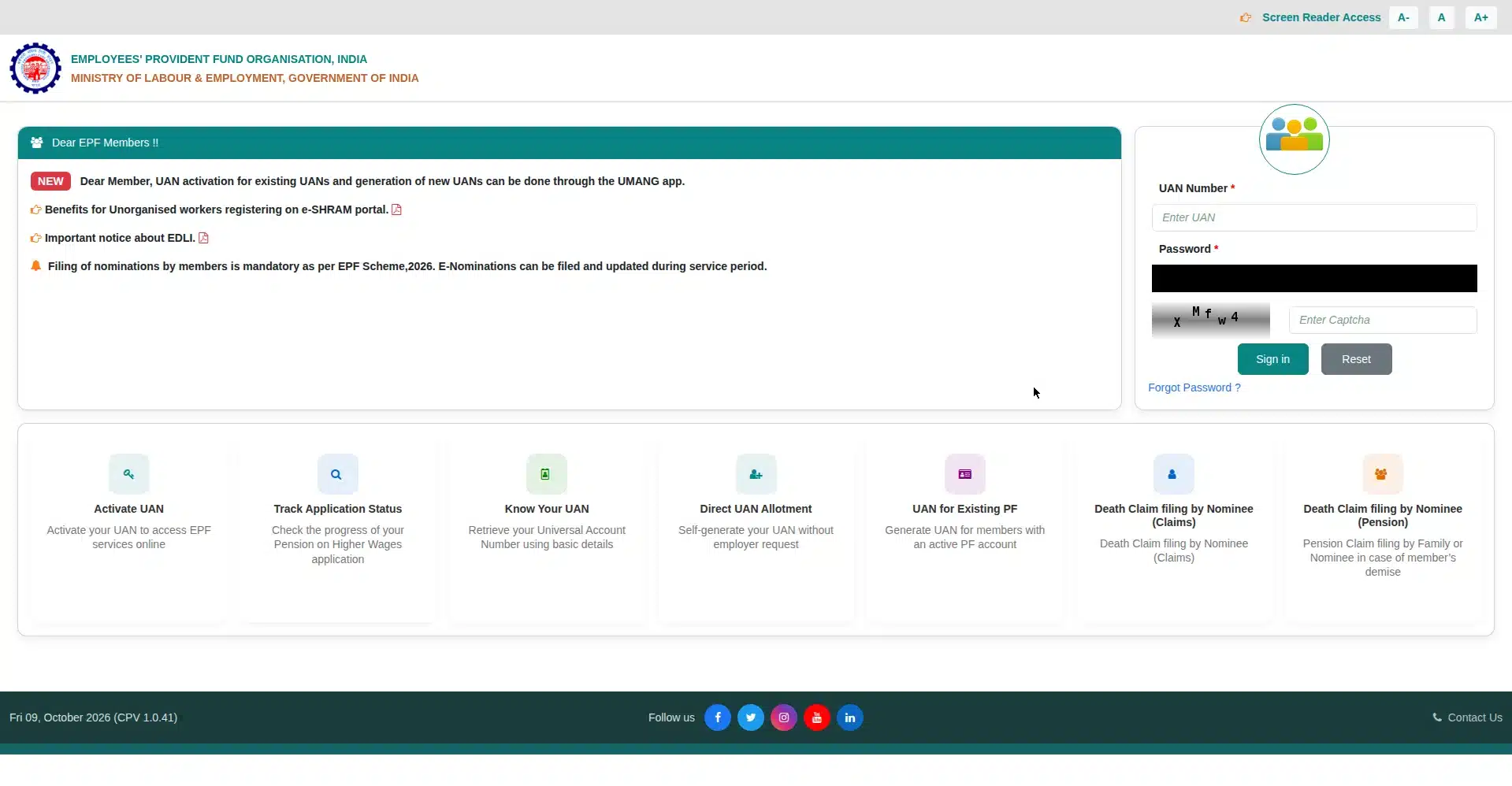
EPFO member portal — UAN activation has moved to the UMANG app (2026)
What Is UAN?
UAN stands for Universal Account Number — a 12-digit number EPFO allots to every employee covered under the Employees’ Provident Fund scheme. It is yours for life. Change five jobs, and you still keep the same single UAN.
Do not confuse it with your PF member ID. The member ID is a 22-digit number (it encodes your region, office, establishment, and a member extension) that is created fresh every time you join a new employer. Your UAN is the umbrella: every member ID from every job you have ever held gets linked under that one 12-digit number.
When your employer first generates your UAN, it sits dormant in EPFO’s records. EPFO UAN activation online is the one-time process that brings it to life and creates your login credentials. After activation, you can sign in to the member portal, view your passbook, update KYC, file an e-nomination, and track claims. If you want the full background on what activation does, read our UAN activation guide first.
Who Needs EPFO UAN Activation Online?
You need to complete EPFO UAN activation online if any of these describe you:
- First-time employees: You joined your first PF-covered job and HR allotted you a UAN. This is the most common case.
- Never activated it: Your UAN was generated years ago but you never completed activation. It is still dormant — activate it now.
- Changed jobs without activating: Your new employer linked a fresh member ID to your old UAN, but the UAN itself was never activated.
- Lost access: You activated long ago but forgot the password and never set up proper recovery. (Re-activation is not needed — just reset your password on the member portal.)
One UAN per person, forever — that is the rule. If you ever discover two UANs in your name, that is a problem to fix with EPFO, not something to activate twice.
Documents & Prerequisites for EPFO UAN Activation Online
Before you open the UMANG app, get these ready. Missing even one of them is the reason most attempts at EPFO UAN activation online fail halfway:
- ✅ Your 12-digit UAN — allotted by your employer. Check your salary slip or ask HR.
- ✅ Aadhaar number — activation is Aadhaar-based now, so this is mandatory.
- ✅ Aadhaar-linked mobile number — the OTP goes here, and it must be active and in your hand.
- ✅ Matching personal details — your name, date of birth, and gender in EPFO records must match your Aadhaar. If they do not, check your Aadhaar card status and get corrections done first (see Aadhaar update charges).
- ✅ A smartphone with a front camera — face authentication needs it.
- ✅ UMANG app installed (free, official Government of India app).
- ✅ Aadhaar Face RD app installed (free, by UIDAI) — UMANG will prompt you if it is missing.
Quick tip: do this in daylight or a well-lit room. Face authentication fails most often in dim lighting, and good light at the start saves you three retries later.
EPFO UAN Activation Online — Complete Step-by-Step
This is the core of the whole process. Follow these steps in order, and your EPFO UAN activation online will go through in one sitting.
Step 1: Install UMANG and Register
Download the UMANG app from the Google Play Store or Apple App Store — make sure it is the official app published by the Government of India (MeitY/NeGD), not a lookalike. Open it and register with your mobile number, then set a 4-digit MPIN when asked. This MPIN becomes your UMANG login — you will need it every time you open the app, including for EPFO UAN activation online — so pick something you will remember.
Use the same mobile number that is linked to your Aadhaar if possible. It keeps the OTP steps smooth.
Step 2: Find EPFO Services in UMANG
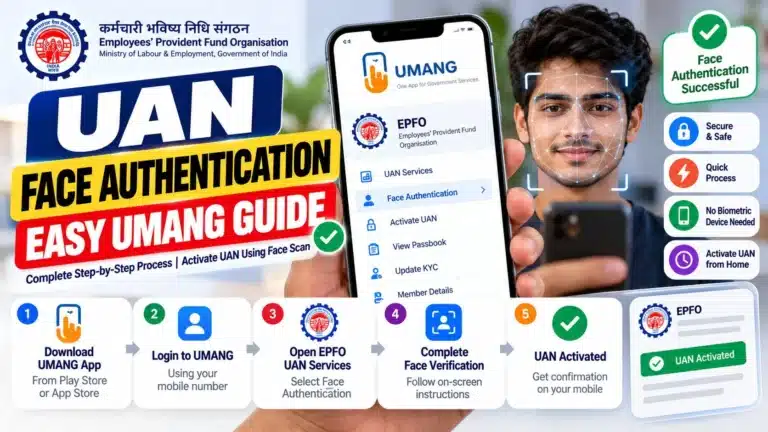
On the UMANG home screen, use the search bar and type “EPFO”. Open EPFO Services from the results. Inside, look for “UAN Services Through Face Auth” and tap it. Then select “UAN Activation”.
This is the new home of EPFO UAN activation online — the old portal route simply does not exist anymore.
Step 3: Enter Your UAN, Aadhaar, and Mobile Number
You will see a form asking for three things:
- Your 12-digit UAN (from your employer, salary slip, or HR)
- Your Aadhaar number
- Your Aadhaar-linked mobile number
Read the consent declaration carefully, tick the checkbox, and tap Send OTP. The consent matters here — you are authorising EPFO to fetch your details from the Aadhaar database.
Step 4: Verify the OTP
Enter the OTP that arrives on your Aadhaar-linked mobile number. Did not get it? Wait a couple of minutes, check your network signal, make sure DND is not blocking service SMSes, and use the resend option. If OTPs never arrive, your mobile number may not actually be linked to Aadhaar — you will need to visit an Aadhaar enrolment centre to link it first.
Step 5: Install the Aadhaar Face RD App (If Prompted)
On Android, UMANG will ask you to install UIDAI’s Aadhaar Face RD app from the Play Store if you do not have it already. It is free and tiny. Install it and return to UMANG — the activation flow will resume where you left off.
Step 6: Complete Face Authentication
This is the step that replaced the old OTP-only verification, and it is simpler than it sounds. If you want the full technical background, see how face authentication works.
- On the consent screen, tap Face Authentication.
- Your front camera opens with a face outline on screen. Hold the phone steady at arm’s length and centre your face inside the outline.
- The outline turns from red to green when your face is captured correctly — that colour change is your success signal.
- If prompted, blink once. This liveness check proves you are a real person, not a photo.
- Keep the lighting good, wipe your camera lens clean, and sit against a plain background. Remove anything covering your face.
Failed on the first try? Totally normal. Adjust the light, hold still, and retry — most people get it on the second attempt.
Step 7: Review Your Details and Submit
After successful face authentication, EPFO auto-fetches your name and date of birth from Aadhaar and shows them for review. Check them carefully. If everything matches, hit Submit.
If the details look wrong, stop here — do not submit with mismatched data. Fix your Aadhaar details first (or ask your employer to correct the EPFO records), then restart. Submitting wrong details creates a mess that takes weeks to untangle.
Step 8: Receive Your Temporary Password
Once submitted, EPFO sends a temporary password via SMS to your registered mobile number. This is your first-login credential: your UAN is the username, and this temporary password gets you in. You will change it on first login.
Step 9: What EPFO Updates Automatically
Once your EPFO UAN activation online form is submitted, EPFO pulls your photograph and address directly from the Aadhaar database and updates your member profile with them. One less KYC headache later.
Step 10: Verify Your Activation Worked
Want proof it is done? Go back to “UAN allotment and activation” in UMANG’s EPFO services, re-enter your details, and complete the OTP step. Instead of an activation form, you will see the message: “The UAN entered is already activated.” That is your confirmation. Congratulations — your EPFO UAN activation online is complete.
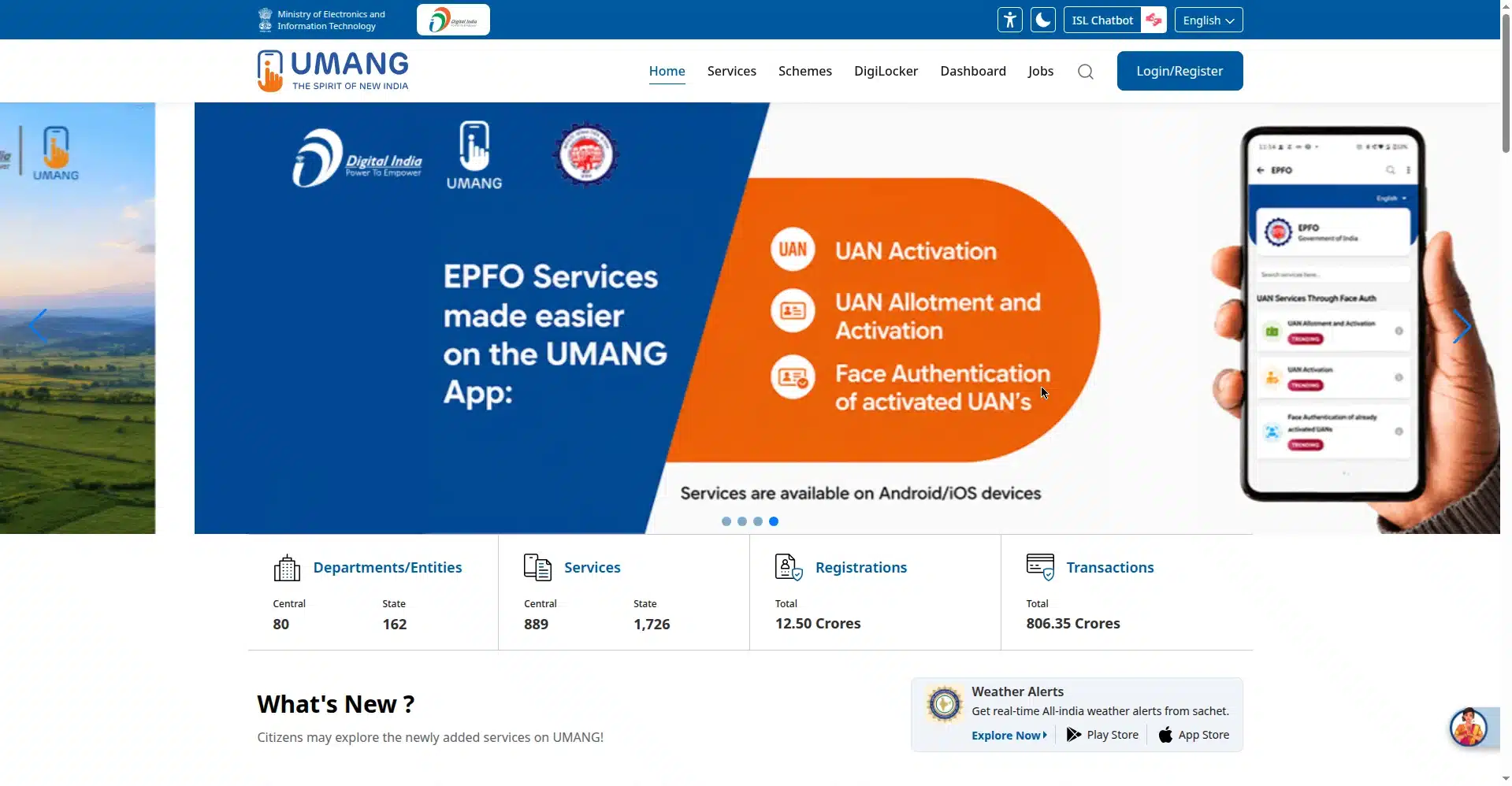
UMANG portal — search for EPFO services here
Old vs New Method: EPFO UAN Activation Online
Confused by contradictory guides? This table settles it — what used to work, and what works now:
| Method | How It Worked | Status |
|---|---|---|
| Member portal OTP method (pre-July 2026) | Enter UAN, member ID, Aadhaar, and mobile number on the EPFO unified portal; verify with OTP; set your own password. | ❌ Discontinued from July 3, 2026 |
| UMANG app + Aadhaar face authentication (current) | UMANG → EPFO Services → “UAN Services Through Face Auth” → “UAN Activation”; OTP plus live face scan; temporary password via SMS. | ✅ Only working method for EPFO UAN activation online |
Why did EPFO make the switch? Three reasons: cutting down identity fraud in PF accounts, consolidating records against the Aadhaar database, and supporting the Pradhan Mantri Viksit Bharat Rozgar Yojana (PMVBRY), which needs face-auth-verified employee records to work properly.
What If Your Employer Has Not Given You a UAN?
Here is something most guides skip entirely: you cannot activate a UAN you do not have. Your employer generates your UAN when you join — it is their job, not yours. So if you have no UAN yet, here is what to do:
- Ask your HR first. In most companies, HR shares the UAN within the first month of joining, often along with the salary slip. Check your payslip — the UAN is usually printed on it.
- Filled Form 11? When you joined, you should have signed Form 11 (the new-employee declaration for PF). If your employer never collected it, remind them — UAN generation starts there.
- Employer delaying? If weeks pass with no UAN, follow up in writing (email, not just verbal). Employers are required to generate UANs for eligible employees through the EPFO employer portal.
- International workers: If you are an international worker (including citizens of Nepal and Bhutan working in India), the employer-assisted route still applies to you — your employer handles UAN generation and activation support directly.
Once your employer hands you the UAN, come back here and run through the EPFO UAN activation online steps above. The activation itself is always your task; generation is theirs.
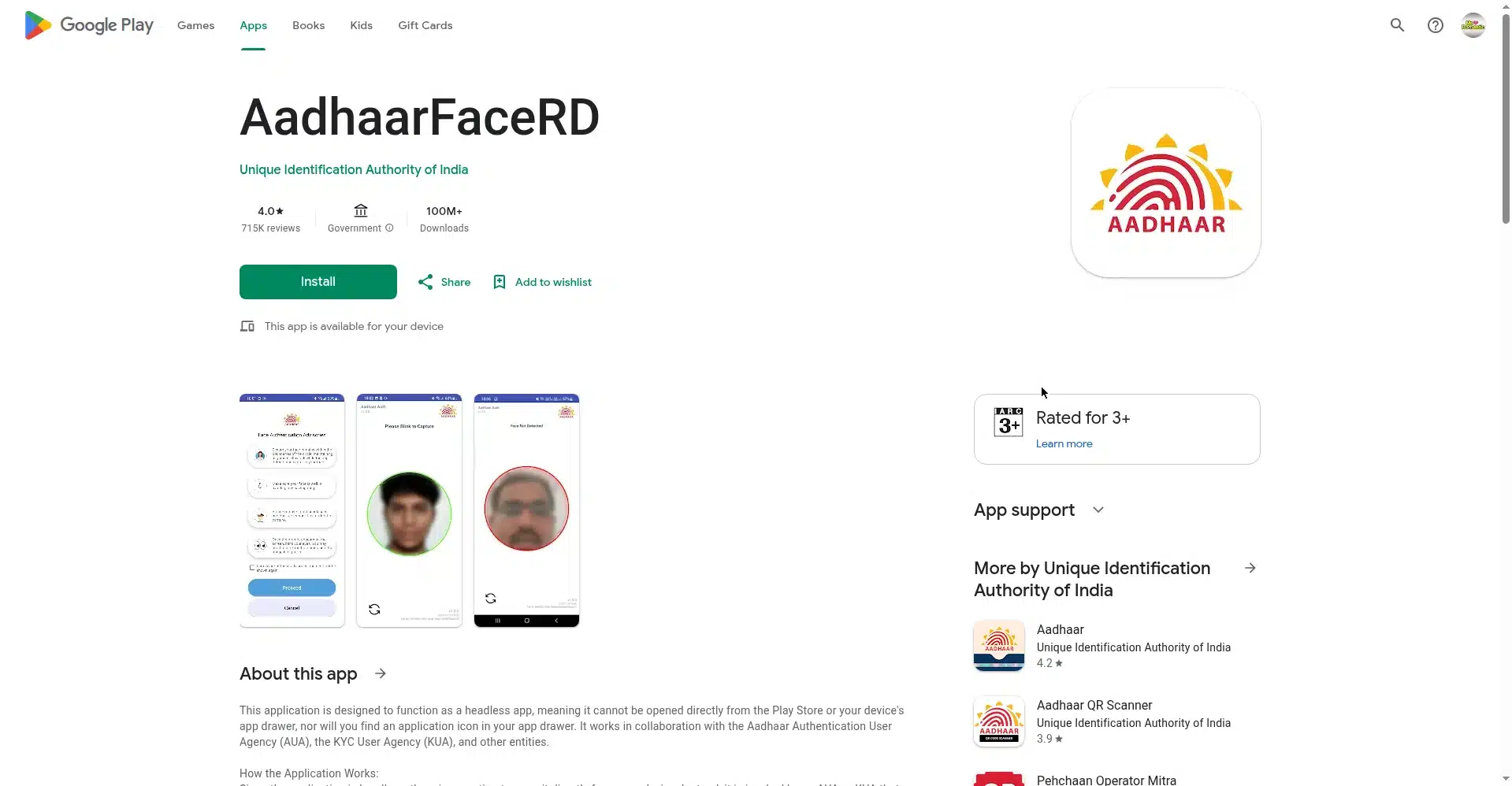
Aadhaar Face RD app by UIDAI (100M+ downloads)
Common Errors & How to Fix Them
Something stuck? Find your error below — these cover nearly every failed EPFO UAN activation online attempt:
| Error / Problem | What It Means & How to Fix It |
|---|---|
| Face authentication fails repeatedly | Move to better lighting, clean your front camera lens, use a plain background, and hold the phone steady. Make sure the Aadhaar Face RD app is updated. Read how face authentication works for detailed tips. |
| OTP not received | Wait 2–3 minutes and use resend. Check network signal and make sure DND is not blocking service SMS. If it never arrives, your mobile may not be linked to Aadhaar. |
| “Invalid Aadhaar number” | Re-enter all 12 digits carefully — a single wrong digit triggers this. Copy it from your physical Aadhaar or mAadhaar app. |
| Mobile number not linked with Aadhaar | Online activation cannot proceed without this. Visit the nearest Aadhaar enrolment centre to link or update your mobile number, then retry after the update reflects (usually 24–72 hours). |
| Name / DOB / gender mismatch | Your EPFO records must match Aadhaar exactly. Update whichever side is wrong — for Aadhaar corrections see Aadhaar update charges; for EPFO-side errors, ask your employer to correct it through the employer portal. |
| “The UAN entered is already activated” | Good news — this is not an error. Your UAN is active. Skip activation and log in to the member portal directly (reset the password if you forgot it). |
| Duplicate UAN / “UAN already exists” | One person, one UAN — always. If two UANs exist in your name, do not activate the second one. Contact your employer and EPFO to get the duplicate deactivated and the accounts merged. |
| Forgot your UAN | Use the “Know Your UAN” option on the EPFO member portal, or retrieve it through UMANG’s EPFO services with your registered mobile number. You can also find it on any salary slip. |
| Temporary password SMS never arrived | Check DND settings and wait a few minutes — SMS delivery can lag. If the SMS genuinely never arrives, do not re-run the whole activation — just use “Forgot Password” on the member portal to set a fresh one. Your UAN is already active at that point. |
| Aadhaar Face RD app will not install | Check that your phone runs a supported Android version with enough free storage, and install only from the official Play Store listing by UIDAI. Restart the phone and retry if the install stalls. |
Still stuck after trying everything? Call the EPFO helplines: 14470 or 1800-118-005 (toll-free).
After Activation — First Login & Next Steps
Finished your EPFO UAN activation online? Nice. Now finish the setup so your PF account actually works for you:
- First login: Go to the EPFO member portal (unifiedportal-mem.epfindia.gov.in/memberinterface/). Sign in with your UAN and the temporary password from the SMS. Change the password immediately.
- Complete KYC: Seed your Aadhaar, PAN, and bank account details under Manage → KYC. Verified KYC is required before you can file claims or transfers.
- File e-nomination: Add your nominee online so your family never faces paperwork hassles. It takes five minutes.
- Check your passbook: Open the passbook section and confirm your employer’s PF contributions are actually landing every month.
- Download your UAN card: Available in the portal — handy as ID proof of your PF membership.
Note that the member portal is still where all of this happens — login, passbook, claims, KYC, e-nomination, transfers. Only activation moved to UMANG. For the official source on everything EPFO, bookmark epfindia.gov.in.
Frequently Asked Questions
1. Is EPFO UAN activation online free?
Yes, completely free. UMANG, the Aadhaar Face RD app, the OTP, and the activation itself cost nothing. If anyone asks you to pay for “UAN activation services,” walk away — it is a scam.
2. Can I complete EPFO UAN activation online without Aadhaar?
No — not through the online route. Since July 2026, EPFO UAN activation online runs entirely on Aadhaar-based face authentication, so an Aadhaar number with a linked mobile is mandatory. If you do not have Aadhaar, speak to your HR about the employer-assisted process.
3. How long does EPFO UAN activation online take?
If your documents are ready and your Aadhaar details match, your EPFO UAN activation online finishes in one sitting — usually within 10–15 minutes. Most of that is the OTP wait and the face scan. Mismatched details are what stretch it into days, so verify those first.
4. I changed my mobile number. Can I still activate my UAN?
Only if the new number is linked to your Aadhaar. The OTP goes to the Aadhaar-registered mobile, not just any number you own. Update your mobile at an Aadhaar enrolment centre first, wait for it to reflect, then start the activation. Face authentication itself works on the same principle as other eKYC process reference flows you may have used.
5. What should I do if I never receive the temporary password?
First check DND and wait a few minutes. If the SMS genuinely never arrives, do not re-run the whole activation — just use “Forgot Password” on the member portal to set a fresh one. Your UAN is already active at that point.
6. Do I need to activate my UAN again when I change jobs?
No. Activation is a one-time event. Your UAN is lifelong — when you join a new company, the employer simply links a new member ID to your existing, already-active UAN. Nothing to re-activate, ever.
Conclusion
EPFO UAN activation online in 2026 boils down to one path: the UMANG app plus Aadhaar face authentication. Forget the old portal guides — they will only waste your time. Keep your UAN handy, make sure your Aadhaar details and linked mobile are correct, find good lighting for the face scan, and you will be done in minutes.
Once activated, do not stop at the login screen: complete your KYC, file your e-nomination, and check that first passbook entry. Those five extra minutes today save you months of follow-ups later. And if you are new to all of this, our UAN activation guide and the deep dive on how face authentication works have you covered.
Found this guide useful? Share it with a colleague who just joined — chances are their UAN is still sitting dormant too.