Want to delete Instagram account or Snapchat account in 2026? You’re not alone — millions of people delete their Instagram and Snapchat accounts every year, whether it’s for a digital detox, privacy concerns, cutting down screen time, or simply because they no longer use these apps. Whatever your reason, deleting your account is easier than most people think.
In this complete 2026 guide, you’ll learn how to delete Instagram account and how to delete Snapchat account step by step — on both phone and computer. We’ll also cover how to temporarily deactivate your accounts instead of deleting them, how to download your data before deletion, the key differences between the two platforms, and answers to the most common questions.
Both Instagram and Snapchat give you a 30-day grace period after you request deletion, so you can change your mind. But once that window closes, your account — and everything in it — is gone forever. Let’s walk through everything you need to know.
Part 1: How to Delete Instagram Account in 2026
If you no longer want to use Instagram, deletion is the best option. Before doing so, make sure to back up your data, like videos and photos, as you will lose everything after deleting the account. You’ll be able to delete or deactivate your Instagram account via Instagram’s official request page on a desktop browser or on your phone.
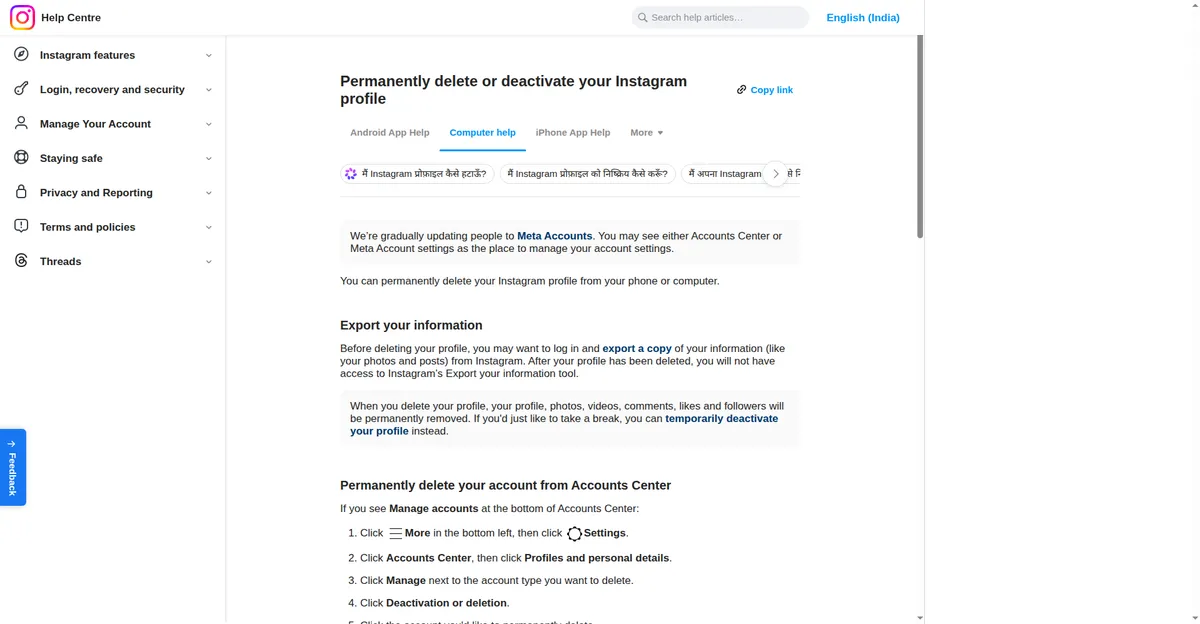
Instagram’s official help page for permanently deleting your account.
Many users delete Instagram account to maintain privacy or take a break from social media. Instagram offers the option to temporarily deactivate your account, but some users want to delete it for good. Here’s how to do it either way.
How to Delete Instagram Account on Your Phone (iPhone or Android)
Anyone looking to delete their account needs to locate the Account Ownership and Control section in Settings and choose Delete or Deactivate. Your Instagram account is not deleted immediately — after you request deletion, Instagram will notify you of the scheduled removal date, set for 30 days later. If you do not sign in during that period, your Instagram account will be permanently deleted.
Here are the steps to permanently delete Instagram account on mobile:
1: Open the Instagram app on your phone.
2: Open your profile, tap the menu icon, then open “Settings and Privacy”.
3: Tap “Accounts Centre”, then open “Personal Details”.
4: Open “Account Ownership and Control”, and tap “Deactivation or Deletion”.
5: Pick the Instagram account you want to remove, tap “Delete Account”, and click “Continue”.
6: Re-enter your Instagram account password and select a reason why you’re leaving. Lastly, click “Continue”. Your Instagram account will now be placed for deletion in 30 days. Log back in within those 30 days if you change your mind and want to keep your account.
How to Temporarily Deactivate Instagram on Android or iPhone
If you want to take a break from Instagram without losing everything, temporary deactivation is a great option. To deactivate your Instagram account through iOS or Android, submit a request via the settings in your profile. This option is available under “Account Ownership and Control” in the Accounts Centre.
Once you deactivate your account, it will be hidden from other users — your followers won’t be able to see it, and it will be removed from search results entirely. Nothing is deleted while the account is deactivated, and you can reactivate it at any time simply by signing back in.
Here are the steps to deactivate your Instagram account on mobile:
1: Open your profile, tap the menu icon, then tap “Settings and Privacy”.
2: Tap “Accounts Centre”, open “Personal Details”, then click “Account Ownership and Control”.
3: Choose “Deactivation or Deletion”, then click on the account you wish to deactivate.
4: Select “Deactivate Account” and continue. Re-enter your account password and mention the reason for deactivating. Your Instagram account will now be deactivated.
How to Delete Instagram Account on a Windows PC or Mac
If you want to know how to delete Instagram account on a PC or Mac, there are two options. First: delete the Instagram account through a direct link to the deletion request page. Second: delete it by navigating to the account settings in your profile. Either way, your Instagram account will be hidden for 30 days before being permanently deleted. If you decide to keep your account, simply log back in within 30 days to stop the deletion process.
Delete your Instagram account via a direct link:
1. Log in to the Instagram account you want to delete.
2. Visit the page to request a permanent deletion.
3. Open the dropdown menu and pick a reason for leaving from the list.
4. Re-enter your account password.
5. Tap “Delete” to confirm.
Delete your Instagram account via Settings on a computer:
1. Log into the Instagram account you want to delete.
2. Open “More”, tap “Settings”, then click “Accounts Centre”.
3. Tap “Personal Details”, then click “Account Ownership & Control”.
4. Tap “Deactivation or Deletion”.
5. Choose your account, click the button next to “Delete Account”, then “Continue”.
6. Enter your account password and select a reason why you’re leaving.
7. Finally, click “Continue”, then click “Delete Account”.
How to Deactivate Your Instagram Account on PC
The Instagram deactivation process on a PC follows similar steps to the phone app, just through a web browser instead:
1. Log into your Instagram account.
2. Open “More”, go to Settings, visit Accounts Centre, then tap Personal Details.
3. You will be redirected to the Ownership and Control option.
4. Tap “Deactivation or Deletion” and select the Instagram account to deactivate.
5. Choose “Deactivate Account” and tap “Continue”.
6. Re-enter your account password to confirm.
7. Select a reason to deactivate your Instagram account.
8. Press “Continue”, then confirm by selecting “Deactivate Account”.
Download Your Instagram Data (Photos and Videos) Before Deleting
Before you delete Instagram account permanently, download a copy of your data. Instagram provides a user-friendly interface for downloading your account information — photos, videos, and more — sent to your registered email address as a dependable backup.
Download your Instagram data via the mobile app:
1. Open Instagram on your smartphone and open your profile page.
2. Tap the three-line menu icon on the upper right to open the menu.
3. Tap the “Your Activity” option.
4. Scroll down and press the “Download Your Information” option.
5. Enter an email address to receive the download link.
6. Tap the “Request Download” button.
7. Re-enter your Instagram account password and follow the guidelines to download your data.
Download your Instagram data via a web browser on PC:
1. Open Instagram.com on your PC browser and click your profile picture to visit your profile page.
2. Tap the Settings option to open the menu.
3. Open the “Privacy & Security” option.
4. Scroll down to find “Data Download”.
5. Click the “Request Download” option.
6. Enter a valid email address and select the format you want — JSON or HTML.
7. Enter your Instagram account password and click “Request Download” to submit.
Deleting vs Deactivating an Instagram Account: Key Differences
There is a significant difference between deleting an Instagram account and simply deactivating it. Once your Instagram account is deleted, it is gone forever. Deactivating Instagram is like temporarily disabling it — your friends won’t be able to see it, and it will be removed from search results, but you can reactivate it at any time and no data will be lost.
| Deactivating Instagram | Deleting Instagram |
| Temporarily hidden: your account is not viewable by your followers or anyone who might search for you. | Permanently gone: your account will be deleted permanently, along with all of its information and data. |
| Recoverable: you can reactivate your account at any time simply by signing in. | Irreversible: your account and data — photos, followers, likes, videos — can’t be recovered once deleted. |
| Data protected: your photos, followers, videos, likes, and profile are all kept safe. | Data erased: everything is permanently removed after the 30-day grace period. |
Should You Delete or Deactivate Your Instagram Account?
If you want to leave the platform for good, choosing to delete Instagram account permanently is the right choice. But if you’re not sure you want to quit forever, deactivate your account instead. Remember that deleting your account is permanent — your followers, photos, videos, likes, and comments will vanish forever.
Perhaps you want more privacy, a digital detox, fewer unwanted distractions, or you’re concerned about data protection, mental health, or social media addiction. If you need only a brief pause, deactivating your account will hide it until you’re ready to return.
How to Reactivate an Instagram Account
To reactivate a deactivated Instagram account, simply sign back in — either on the website or the mobile app. Enter your username and password, and accept the terms of service if they have been updated. Your account will return exactly as you left it. Note: if you requested permanent deletion, you must log back in within the 30-day grace period; after that, restoration is not possible.
Part 2: How to Delete Your Snapchat Account in 2026
Want to delete your Snapchat account but don’t know how? This part of the guide walks you through it step by step. Whether you’re taking a break from social media or simply don’t use Snapchat anymore, deleting your account is straightforward once you know where to look.
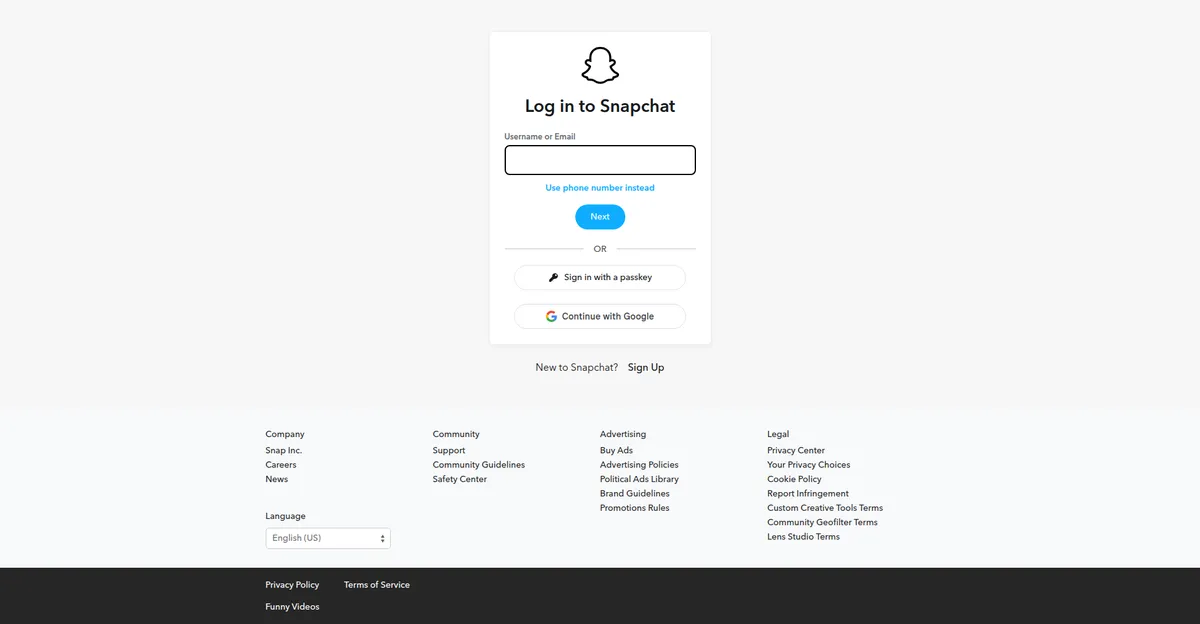
Snapchat requires login at accounts.snapchat.com before deleting your account.
Why Would Someone Delete Their Snapchat Account?
People delete their Snapchat accounts for many reasons:
- Privacy: Some people don’t want their personal information online anymore.
- Less screen time: Snapchat can be fun but also takes up a lot of time.
- Starting over: You might want a fresh account with a different username.
- Not using it: If you no longer use Snapchat, it’s better to delete it.
What Happens When You Delete Your Snapchat Account?
Before you delete your account, here’s what you should know:
- Your profile, snaps, stories, and chats will be gone forever after the grace period ends.
- You can’t get your username back after the account is permanently deleted.
- Your account will be deactivated for 30 days before it’s deleted completely. During this time, you can still log in and reactivate it if you change your mind.
- If you’re unsure about deleting, you can leave your account deactivated instead — just don’t log back in.
Steps to Delete Your Snapchat Account
Follow these steps to delete your Snapchat account. Note that you cannot delete your account from within the Snapchat app — you must use a web browser.
Step 1: Go to the Snapchat Accounts Portal
- Open a web browser on your phone or computer.
- Go to accounts.snapchat.com.
Step 2: Log In
- Enter your Snapchat username and password, then log in.
- You may need to complete a verification check.
Step 3: Open Account Settings and Delete
- Once logged in, look for the option to manage or delete your account.
- Select “Delete My Account” to move forward.
Step 4: Confirm Your Decision
- Snapchat will ask you to confirm that you want to delete your account.
- Type your password again and click “Continue”.
That’s it! Your account will be deactivated right away and deleted permanently after 30 days. If you log back into the Snapchat app within those 30 days using your username and password, your account will be reactivated.
Things to Do Before Deleting Your Snapchat Account
Before you delete your account, here are a few important tips:
- Save your data: You can download your snaps, chats, and Memories. In the Snapchat app, go to Settings, then “My Data”, and request a download of your account data before deletion.
- Tell your friends: Let your friends know you’re leaving Snapchat so they can stay in touch another way — your friends won’t receive a notification when you delete your account.
- Check connected apps: If you used Snapchat to log in to other apps or services, update your login details on those apps first.
Instagram vs Snapchat Deletion: Comparison Table
Both platforms give you a 30-day window to change your mind, but there are some important differences in how deletion works on Instagram versus Snapchat:
| Feature | Snapchat | |
| Delete from app | Yes — via Settings > Accounts Centre > Account Ownership and Control | No — must use a web browser at accounts.snapchat.com |
| Grace period | 30 days — log back in to cancel deletion | 30 days — log back in to reactivate |
| Temporary deactivation | Yes — account hidden, fully recoverable anytime | Deactivation is the first stage of deletion; just don’t log in for 30 days |
| Data download | Settings > Your Activity > Download Your Information (JSON or HTML) | Settings > My Data — request download of snaps, chats, Memories |
| Username reuse | Deleted usernames generally cannot be reclaimed | You can’t get your username back after permanent deletion |
| Recovery after grace period | Not possible — everything is permanently erased | Not possible — profile, snaps, stories, and chats are gone forever |
Frequently Asked Questions
1. Can I delete my Instagram account from the app?
Yes. To delete Instagram account from the app, go to your profile, tap the menu, open “Settings and Privacy”, then “Accounts Centre” > “Personal Details” > “Account Ownership and Control” > “Deactivation or Deletion”, and choose “Delete Account”.
2. Can I delete my Snapchat account from the app?
No. Snapchat requires you to use a web browser. Go to accounts.snapchat.com, log in, select “Delete My Account”, and confirm with your password.
3. How long does it take to permanently delete Instagram account or Snapchat account?
Both platforms deactivate your account immediately and permanently delete it after 30 days. During those 30 days you can log back in to cancel the deletion.
4. Will my photos and messages be deleted when I delete my account?
Yes. On Instagram, all photos, videos, followers, likes, and comments are permanently removed. On Snapchat, your profile, snaps, stories, and chats are gone forever. Download your data before deleting.
5. Can I recover my account after it’s permanently deleted?
No. Once the 30-day grace period ends on either platform, the account and all its data are non-recoverable.
6. Will my friends be notified if I delete my Instagram or Snapchat account?
No. Neither platform sends a notification to your friends. Your profile simply becomes invisible to them — on Instagram it disappears from search, and on Snapchat friends can no longer view your profile or send you snaps.
Conclusion
To delete Instagram account or Snapchat account is a simple process once you know the steps — and both platforms give you a 30-day safety net in case you change your mind. The key differences to remember: Instagram lets you delete or deactivate right from the app’s settings, while Snapchat requires a web browser at accounts.snapchat.com.
Before you delete Instagram account or Snapchat account, always download your data first so your photos, videos, and memories are safely backed up. And if you’re not fully sure about leaving for good, use the temporary deactivation option instead — your account will be hidden but fully recoverable whenever you’re ready to return.
Ready for a digital detox? Follow the steps above, and you’ll have a cleaner, calmer digital life in just a few minutes. Looking for more step-by-step tutorials? Browse our How-To guides for more easy tech walkthroughs.